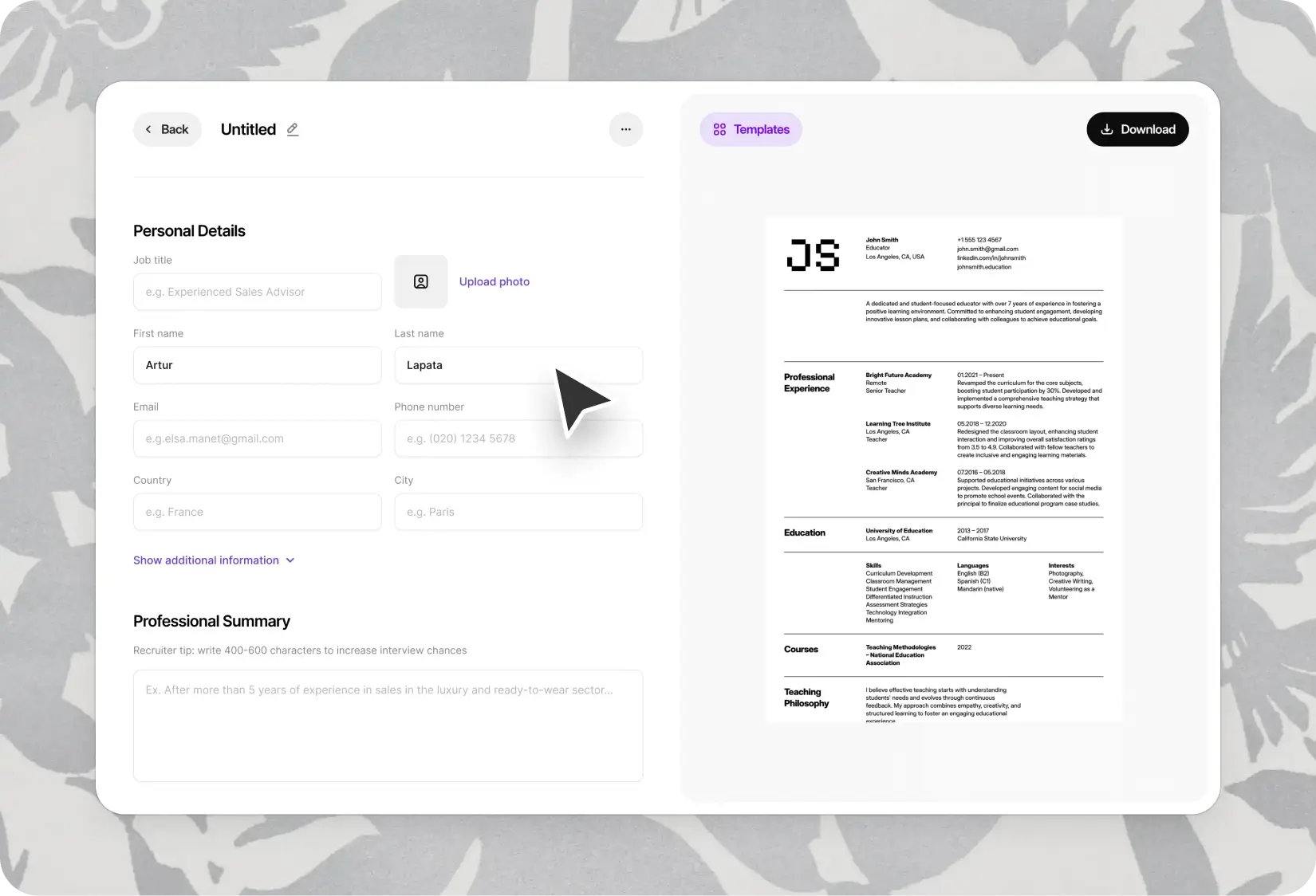
PDF Resume Templates — Pixel-Perfect on Every Screen
16 PDF resume templates that look exactly right wherever they're opened. Your layout, preserved perfectly — on any device, any operating system.
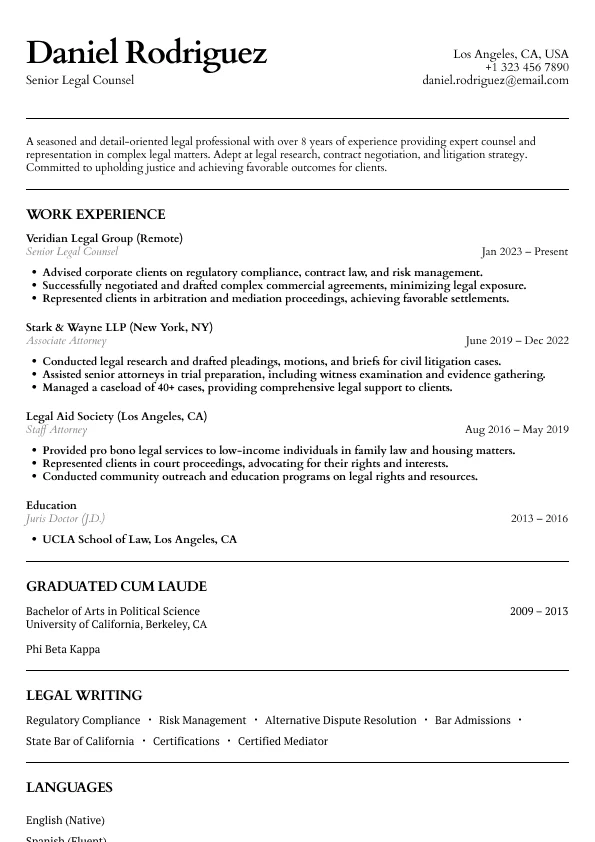
Atlas
Classic legal resume layout with clear hierarchy and refined section styling.
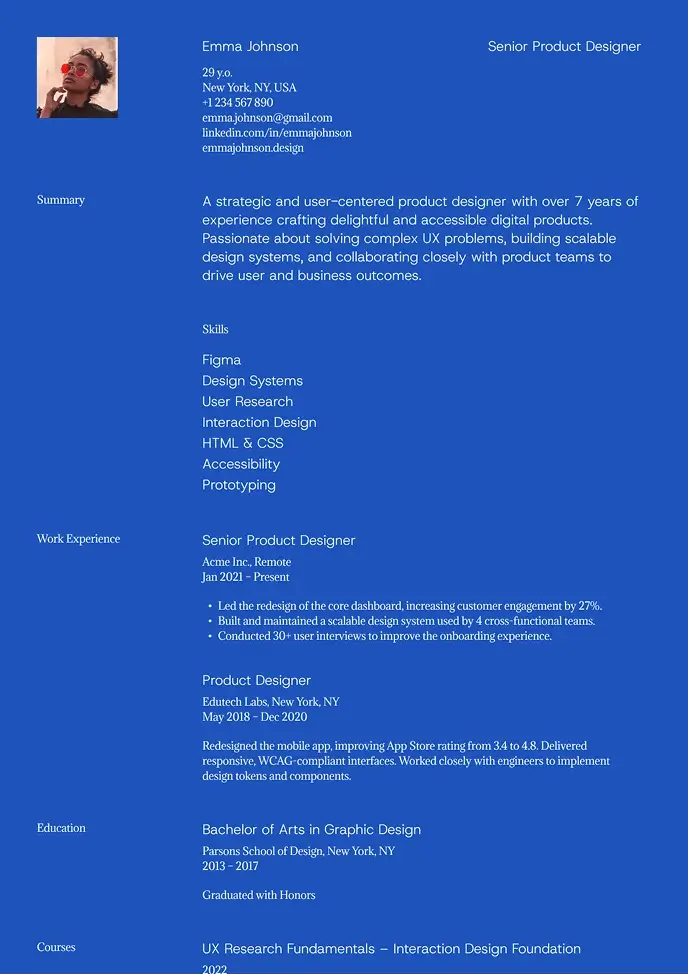
Kyoto
Bold and modern resume with strong contrast and easy structure.
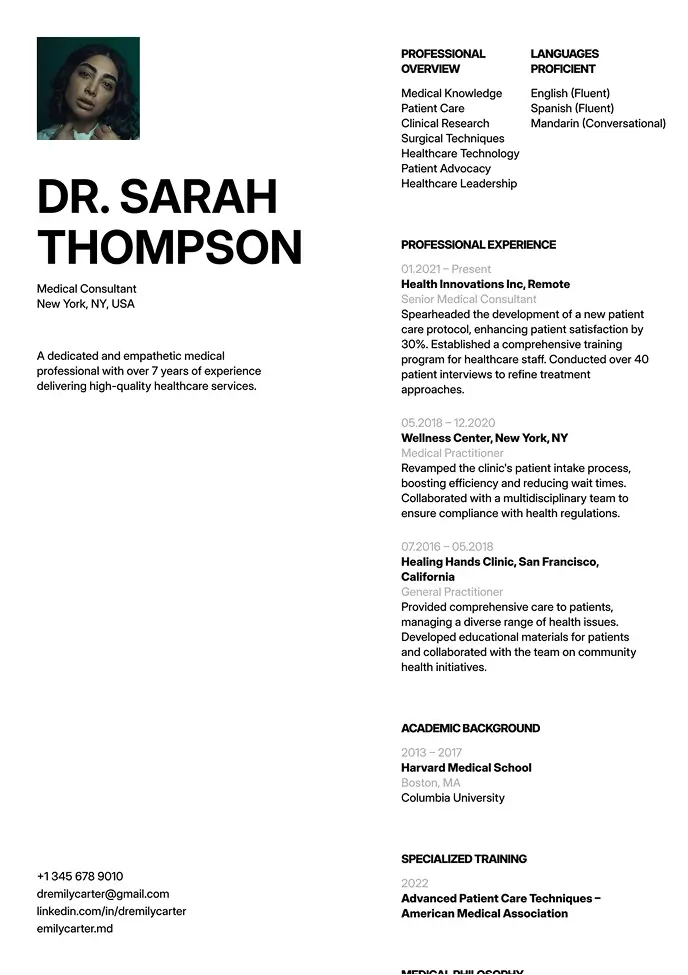
Oxford
Clean layout for clear info flow, great for formal industries.
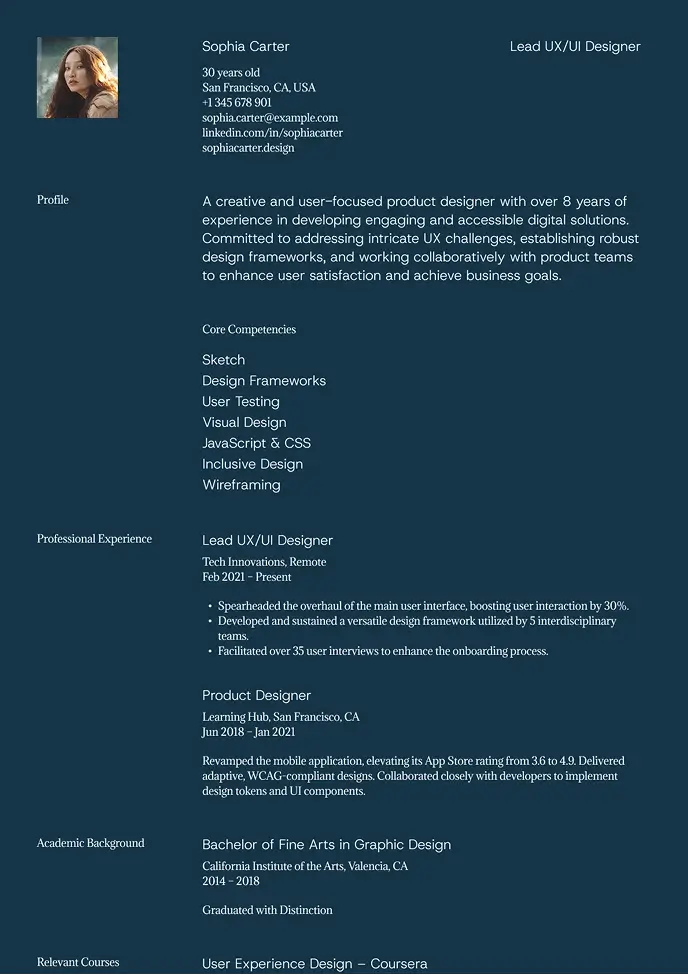
Denali
Dark, stylish design that highlights key details with contrast.
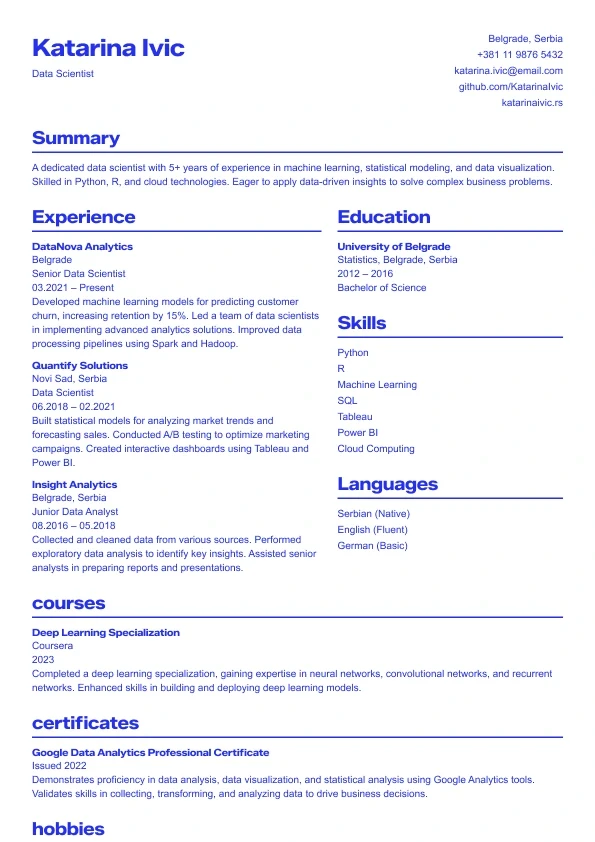
Sapphire
A bold, modern resume template with strong blue accents.
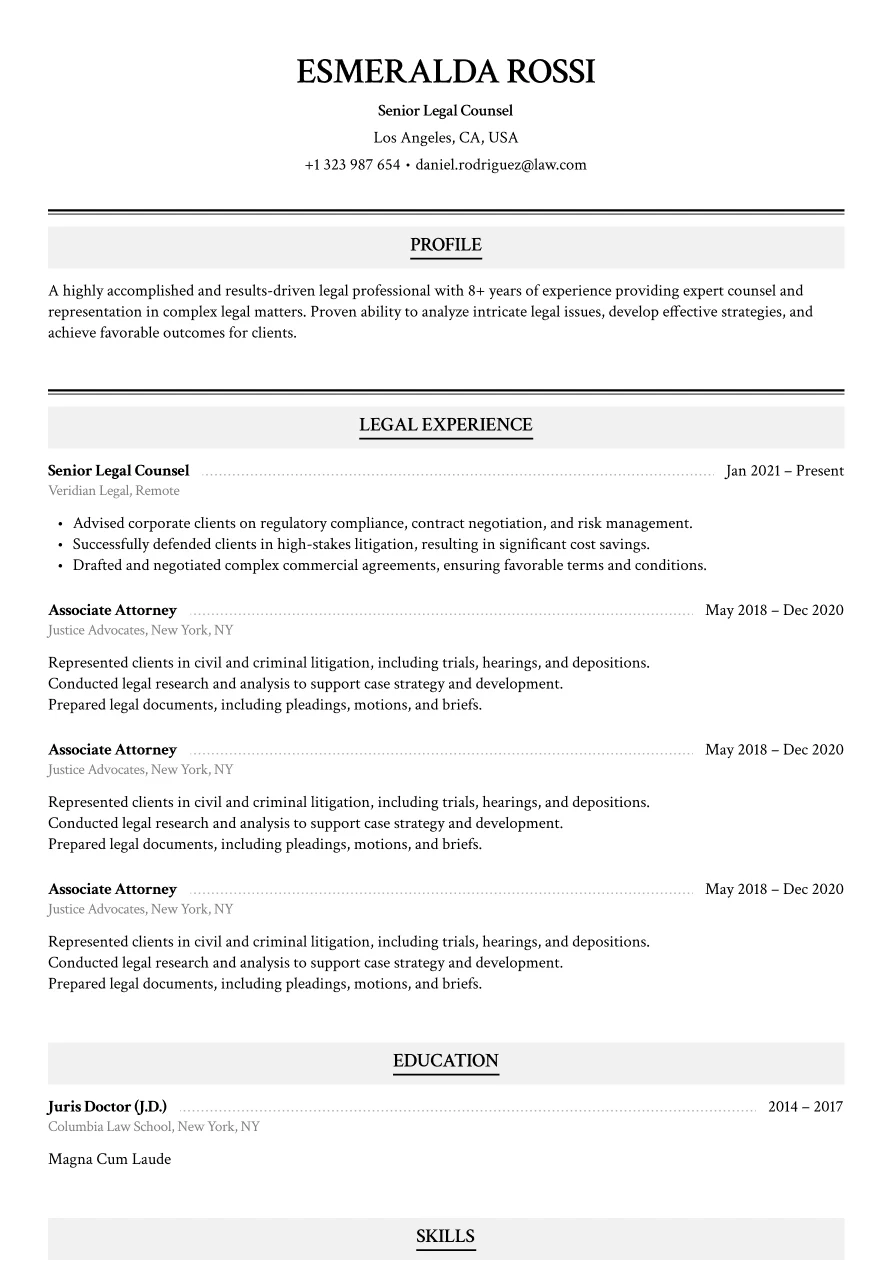
Haven
Classic legal layout with refined section styling.
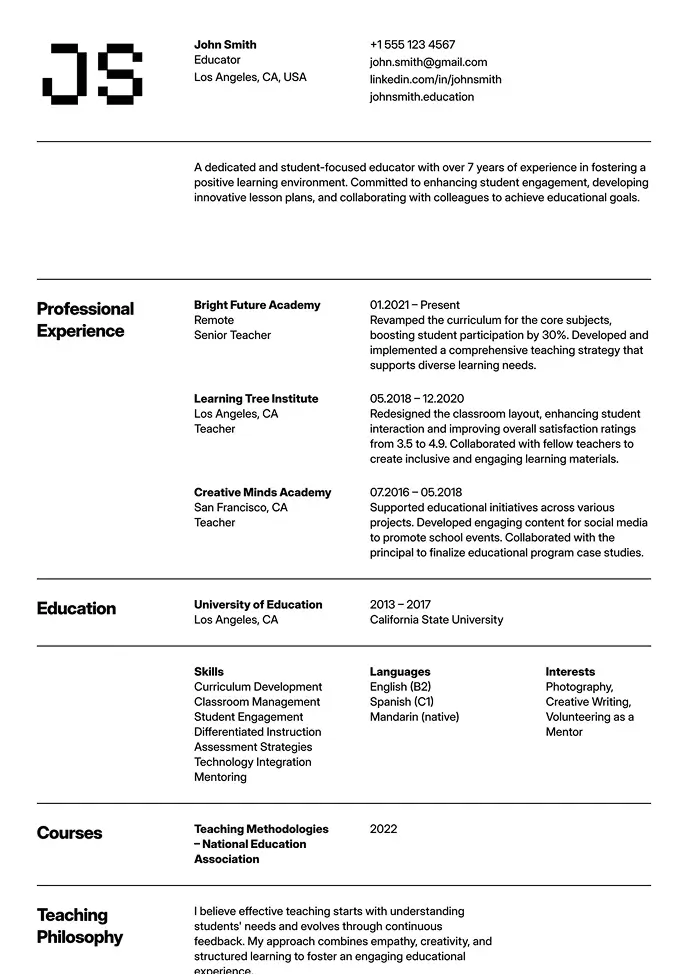
Oslo
Classic structure with modern typography and grid-based layout.
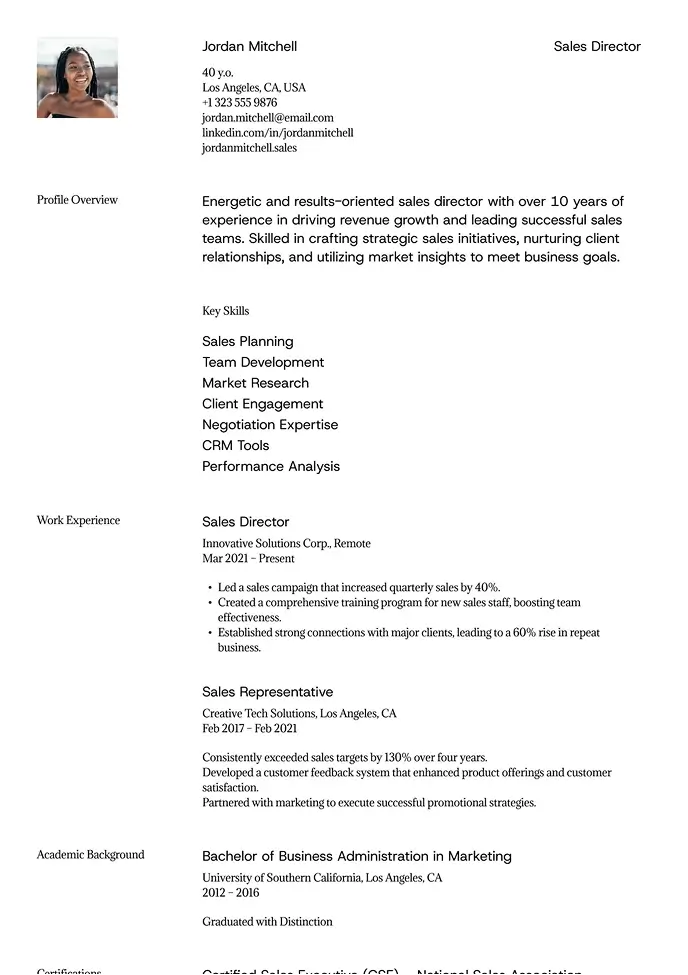
Sienna
Professional layout with a clear focus on leadership.
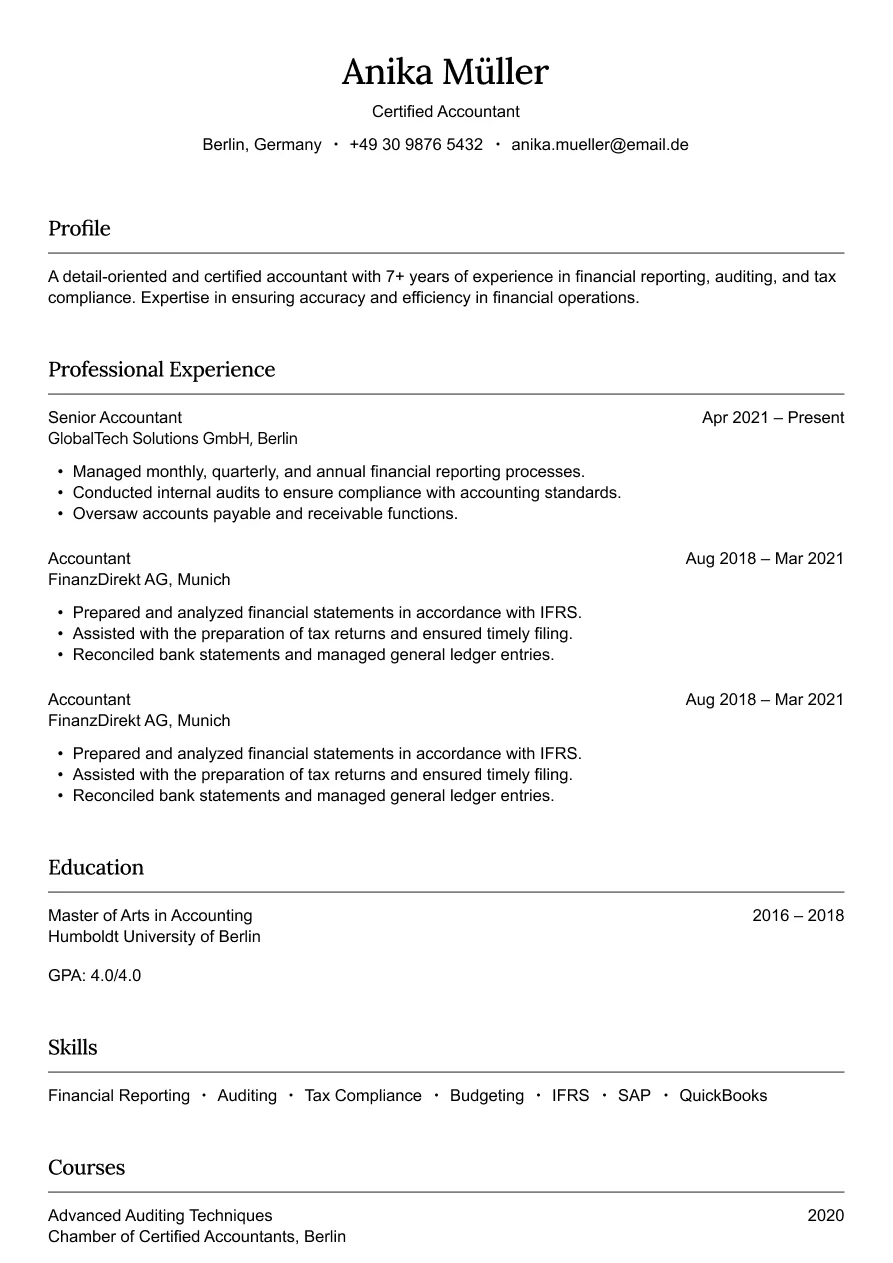
Austin
Simple and professional design for finance roles.
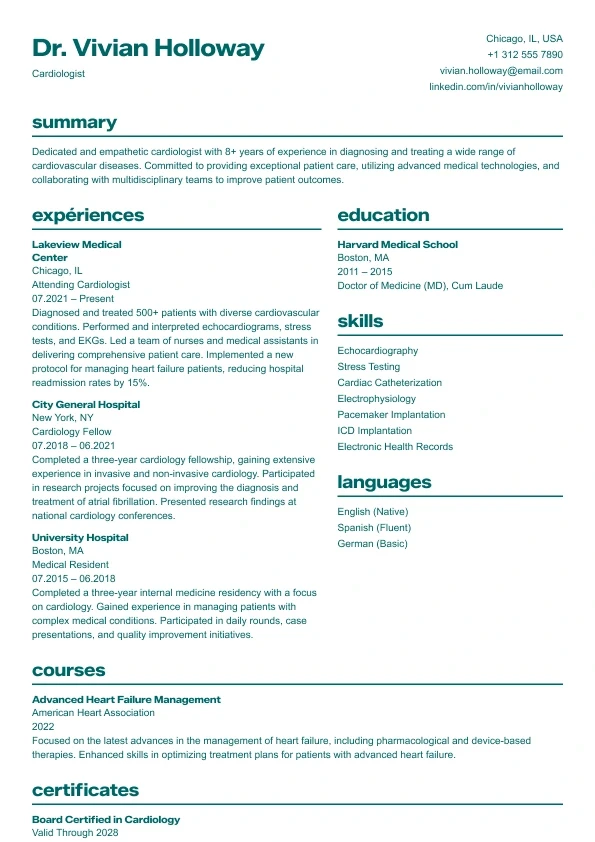
Aurora
Clean and structured layout with bold headings and a clear two-column design.
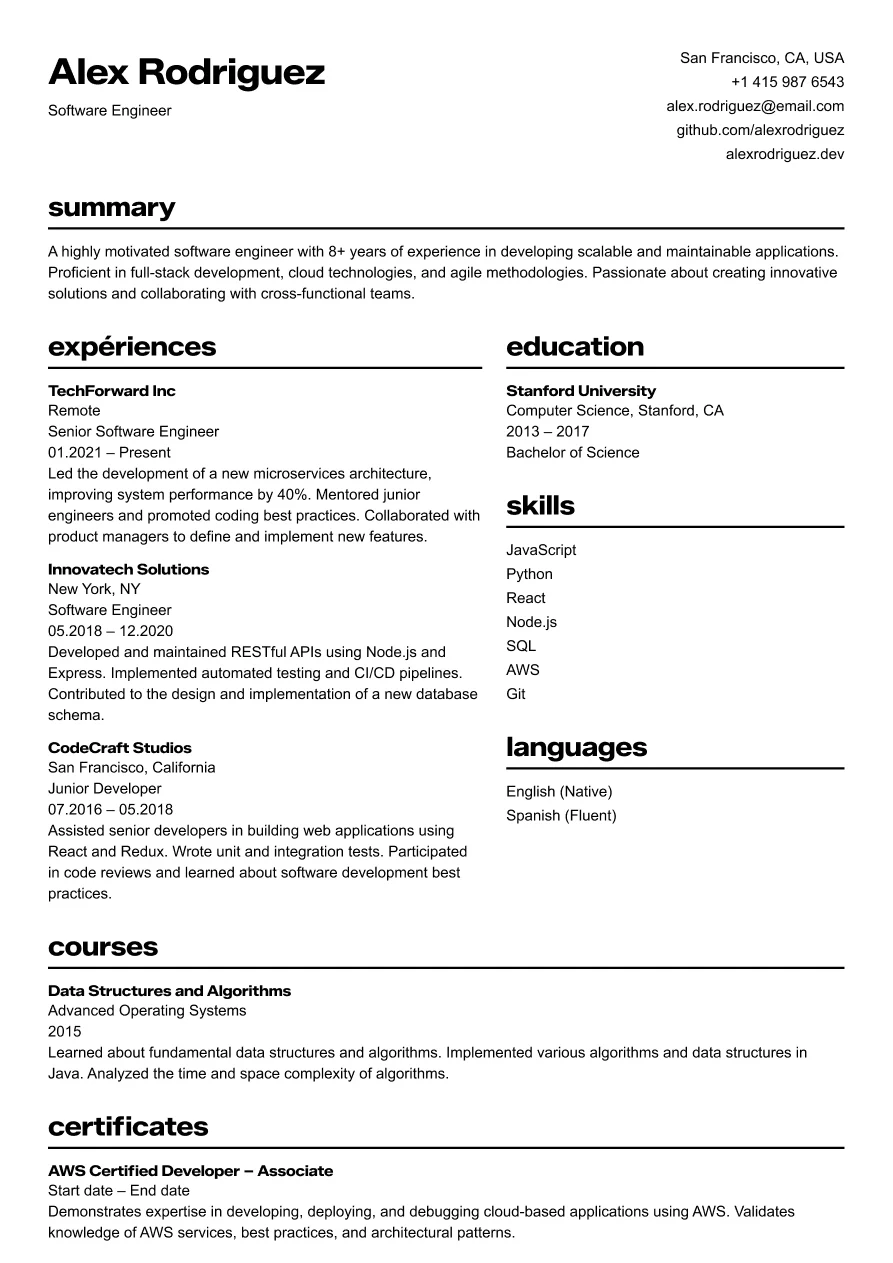
Osaka
Clear and structured layout for tech professionals.
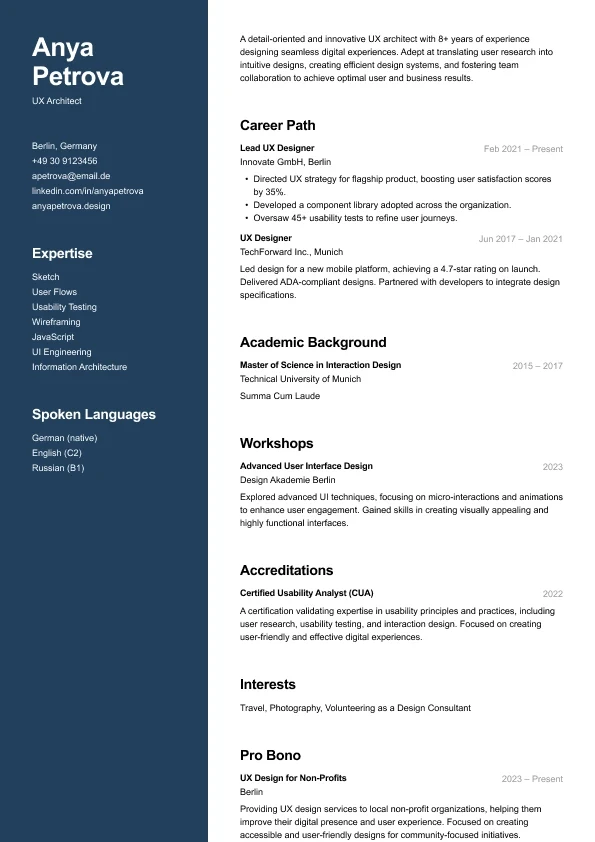
Carbon
A modern two-column resume who want strong visual hierarchy and clean structure.
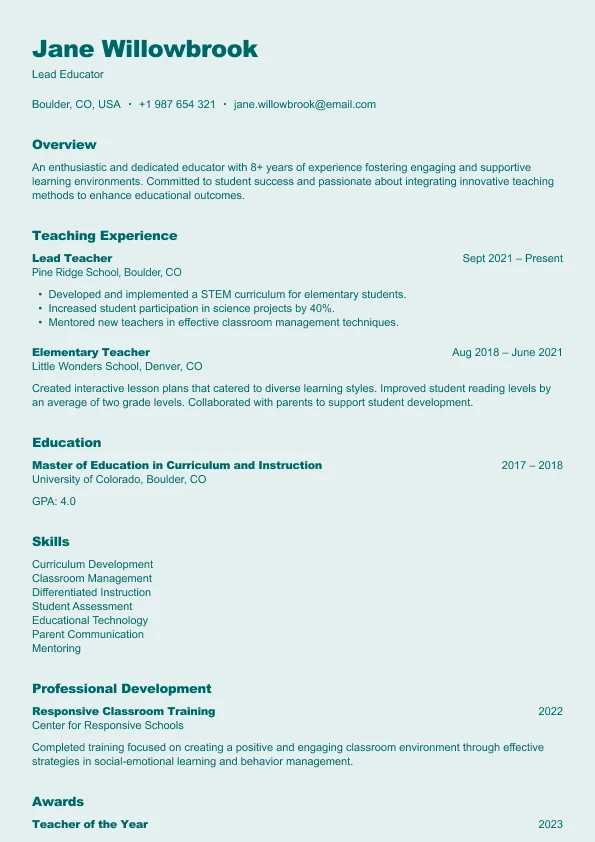
Harbor
A clear, reader-friendly layout built who want a structured and approachable resume.
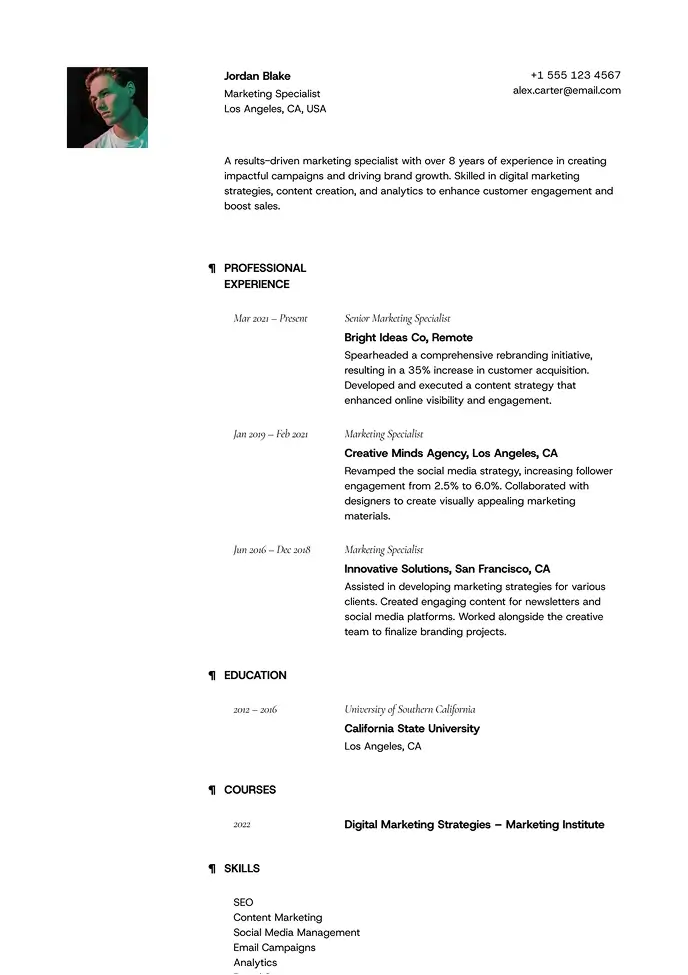
Lima
Minimal and airy, perfect for professionals who value clarity.
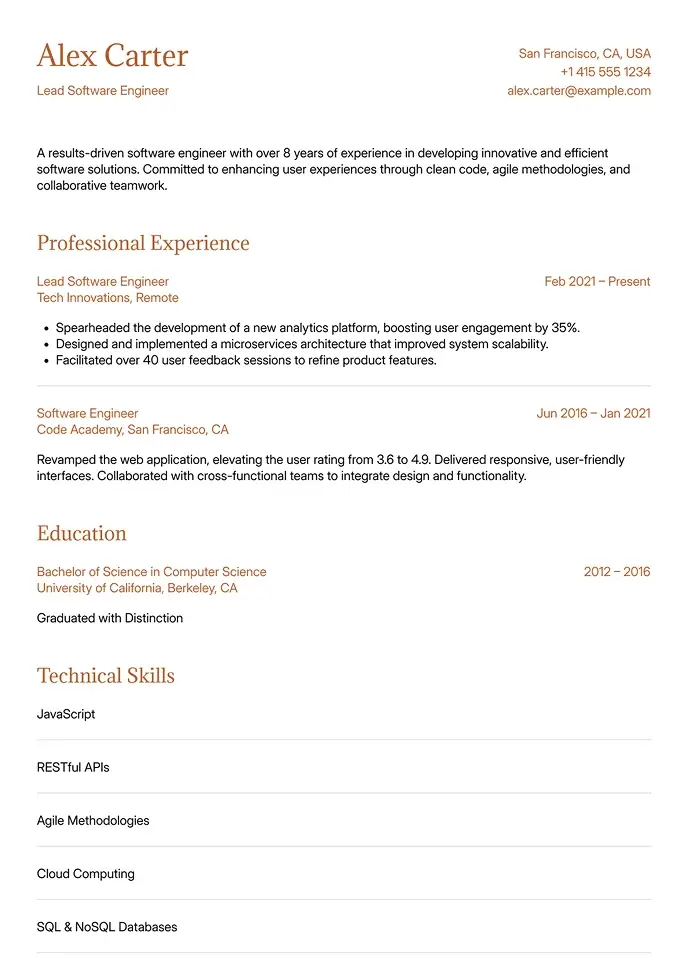
Canyon
Simple and clean, built for technical or structured resumes.
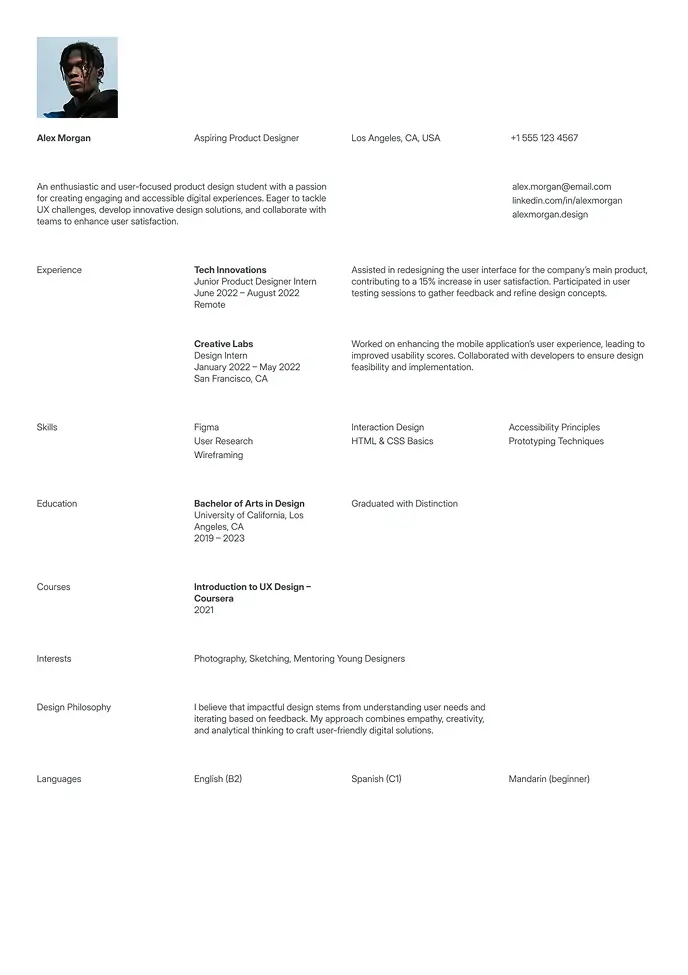
Berlin
Clean and simple resume, great for students or interns.
PDF or Word? A Quick Decision Guide
Most submission scenarios have a clear right answer — here's how to choose without second-guessing:
Emailing your resume directly to a recruiter or hiring manager: PDF every time. Formatting is guaranteed regardless of what software they use to open it.
Uploading to a large company's ATS portal: Check if they specify a preferred format. Word is often safer for older systems. If no preference is stated, PDF is fine for modern ATS.
Submitting through a staffing agency: Word preferred. Agencies reformat before presenting to clients.
Applying to creative, design, or media roles: PDF — visual formatting matters and you want it preserved exactly.
Using a modern or two-column layout: PDF. These designs depend on precise positioning that Word may render differently on other systems.
Job posting says "PDF preferred" or "send as attachment": PDF, and follow the instruction explicitly.
Need Word format? Our Word resume templates are the companion set. For ATS portal submissions, see our ATS resume templates.
What PDF Format Unlocks for Resume Design
PDF is the only format that fully protects a carefully designed resume. When you submit a Word file, there's always a risk that fonts aren't installed, margins shift between Word versions, or spacing renders differently on the recipient's machine. PDF eliminates all of that.
wensaresume.com's 16 PDF resume templates make the most of what the format offers:
Precise typography — letter-spacing and line-height set exactly as designed, not approximated
Embedded fonts — your resume looks identical on a recruiter's Mac, PC, or mobile device
Clean color accents — header backgrounds, section dividers, and accent colors render exactly as intended
Print-ready formatting — correct margins and resolution whether reviewed on screen or printed for an in-person interview
For visually distinct PDF resumes, explore our modern resume templates or two-column resume templates.
5 Steps to a Submission-Ready PDF Resume
Complete all editing first — in Word, Google Docs, or your design tool. Never edit a PDF directly for resume purposes.
Export using "Save as PDF" or "Print to PDF" — don't scan a printout or photograph a page.
Verify text is selectable — open the PDF and try to highlight text. If you can't, the file is image-only and won't parse in any system.
Check file size is under 2MB — most job portals and email systems have attachment limits.
Name the file clearly — FirstName-LastName-Resume.pdf, not "resume_v3_final_FINAL.pdf."
Prefer to draft in Google Docs before exporting? Our Google Docs resume templates export cleanly to PDF. For minimal PDF designs, our simple resume templates download perfectly in PDF format. Browse all resume templates.
Google Docs
9 resume templates that live in Google Docs. No installs, no file management — open your browser and start editing. Takes 90 seconds to get started.
Recruiter Approved
Build a Resume That Works. Literally.
Our templates are designed to get you noticed, shortlisted, and hired — fast.